Introduction
Picture this: your grant proposal is due in 48 hours, and your organization's server crashes. Or your staff arrives Monday morning to find ransomware has locked every donor record in the building. Sophos' 2024 State of Ransomware report found that 59% of surveyed organizations experienced a ransomware attack, with mean recovery costs hitting $2.73 million — excluding any ransom paid.
For nonprofits, associations, and small businesses, the stakes are different from large enterprises. There's no in-house IT team watching the alerts. Donor records, grant documentation, and member data can't be reconstructed from memory. One incident without verified backups can set an organization back months — or permanently.
Cloud backup is now a baseline requirement, not a luxury — but the market is cluttered. Dozens of services compete on price, storage limits, and security claims, and choosing the wrong one can leave your organization exposed while believing it's protected.
This guide reviews five leading cloud backup services evaluated specifically for organizations with 10–150 staff, limited IT resources, and sensitive operational data. Each service is assessed on ease of setup, security controls, recovery speed, pricing transparency, and suitability for lean IT environments.
Key Takeaways
- Cloud backup retains multiple file versions; Google Drive and OneDrive only sync files, not protect them
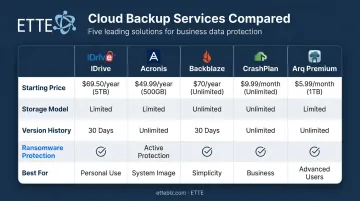
- IDrive leads for multi-device value; Acronis adds ransomware protection; Backblaze is best for unlimited storage per device
- CrashPlan suits small business environments; Arq Premium fits budget-conscious, tech-comfortable teams
- Nonprofits and associations must prioritize encryption, versioning depth, and compliance-aware data handling
- A backup that has never been tested is not a backup — it's a hope
What Is Cloud Backup and Why Does Your Organization Need It?
Cloud backup automatically copies files, folders, or entire systems from your computers to secure offsite servers — retaining multiple versions so you can restore data from any point in time.
That distinction matters. Google Drive, OneDrive, and Dropbox are sync services, not backup services. When you delete a file, that deletion propagates everywhere. Google Drive's trash empties after 30 days, Dropbox Basic holds 30 days of version history, and OneDrive's recycle bin clears after 30 days for personal accounts.
None of these platforms protect you from ransomware that corrupts and "saves" infected files before you notice anything is wrong. By the time you spot the damage, every synced copy reflects it.
Why Small Organizations Are Especially Vulnerable
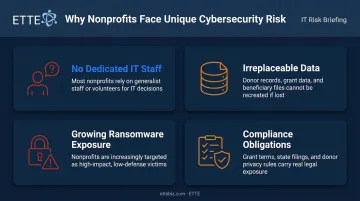
Nonprofits, associations, and small businesses face a specific set of risks:
- No dedicated IT staff to monitor backup health or catch failures
- Irreplaceable data — donor histories, grant records, and member databases often can't be reconstructed
- Growing ransomware exposure — smaller organizations are increasingly targeted precisely because their defenses are thinner
- Compliance obligations — organizations handling personally identifiable information (PII) face data retention and protection requirements that sync tools simply don't address
Cloud backup closes these gaps directly. The sections below break down which services are worth considering — and what to look for before you commit.
Best Cloud Backup Services for Small Businesses and Nonprofits
These five services were selected based on verified pricing, security practices, independent review scores, and real-world usability for lean teams. They vary in how they handle storage limits, versioning depth, and ransomware resilience — the right fit depends on your team's size, technical capacity, and compliance requirements.
IDrive
IDrive earns consistent top marks — PCMag's 4.5/5 Editors' Choice in 2024 — and for organizations managing multiple staff computers, it delivers strong value without requiring separate licenses per machine.
A single account covers Windows, macOS, Linux, iOS, and Android devices. IDrive also backs up Microsoft 365 at $20/seat/year and supports Google Workspace, making it a practical fit for mixed-device environments.
| Feature | Details |
|---|---|
| Pricing | Personal 5TB: ~$69.65/year (first year); Team 5TB (5 users): ~$69.65/year — verify current rates at IDrive pricing before purchasing |
| Key Features | Multiple devices per account, 30-version file history, real-time/10/30/60-minute backup intervals, local backup + cloud, disk image support |
| Best For | Organizations with several staff computers; Microsoft 365 or Google Workspace users; flexible storage tiers needed |
Notable limitation: Deleted files are removed from IDrive's trash after 30 days. Long-term archive retention requires manual management — a consideration for nonprofits with grant documentation requirements.
Acronis True Image
Acronis combines full disk imaging with active, behavioral ransomware detection. When rapid file encryption is detected, it stops the process, protects the backup copy from being overwritten, and restores affected files from clean versions.
PCWorld rated Acronis True Image 4.5/5 Editors' Choice in December 2024, calling it a comprehensive backup and security suite.
| Feature | Details |
|---|---|
| Pricing | Essential (no cloud storage): $49.99/1 PC, $79.99/3 PCs, $99.99/5 PCs annually. Advanced (500GB cloud): $89.99/1 PC, $129.99/3 PCs, $189.99/5 PCs annually |
| Key Features | Active ransomware protection with AI/ML behavioral analysis, full disk imaging, local + cloud hybrid backup, up to 999 file versions |
| Best For | Organizations prioritizing ransomware resilience; those needing full system restore after a catastrophic failure |
Notable limitation: The Essential plan includes no cloud storage. Costs climb steeply as you add computers and storage — budget carefully before committing.
Backblaze Personal Backup
Backblaze strips cloud backup down to its simplest form: unlimited storage, no file-size restrictions, automatic protection of an entire computer. Non-technical staff can set it up with minimal configuration.
| Feature | Details |
|---|---|
| Pricing | $9/month, $99/year, or $189/two years per computer |
| Key Features | Unlimited storage per device, continuous backup, private encryption key option, restore via mailed USB hard drive (up to 8TB for $279, returnable for refund within 30 days) |
| Best For | Staff with large or growing local datasets; organizations backing up one primary workstation per license |
Notable limitation: Version history defaults to 30 days. Extended history to one year is free; "Forever" history costs $0.006/GB/month beyond one year. Organizations with grant or compliance archive requirements should factor this in.
CrashPlan for Small Business
CrashPlan is priced per user rather than per device, offering unlimited cloud storage and unlimited versioning. Deleted file retention goes up to 90 days (configurable shorter). Security defaults include AES-256 encryption at rest and TLS in transit, with per-user encryption keys. CrashPlan offers two-factor authentication but doesn't enforce it by default.
PCMag UK rated CrashPlan 3.5/5 (Good) in March 2025, praising its continuous backup and business controls while noting that per-user costs accumulate for larger teams.
| Feature | Details |
|---|---|
| Pricing | $8/user/month, $88/user/year, or $158/user/two years |
| Best For | Small businesses or nonprofits with 5–50 staff needing per-user endpoint backup with unlimited storage and versioning |
| Key Features | Unlimited storage and versioning, AES-256 + TLS encryption, per-user keys, 2FA available |
Notable limitation: Device-per-user limits have changed and are not clearly stated on current pricing pages. Confirm directly with CrashPlan before purchasing.
Arq Premium
Arq Premium is the most affordable option on this list at $59.99/year for 1TB across up to five computers. Overage is minimal at $0.0059/GB/month. It also supports directing backups to your own cloud storage targets (AWS S3, Backblaze B2, Google Cloud Storage, Wasabi, and others), giving IT-savvy teams full control over where their data lives.
| Feature | Details |
|---|---|
| Pricing | $59.99/year; ~$0.0059/GB/month overage |
| Key Features | 1TB/5 computers, configurable backup frequency (up to hourly), private-key encryption (optional at setup), supports third-party storage targets |
| Best For | Budget-conscious organizations; tech-comfortable staff who want granular control |
Notable limitations: No verified continuous backup mode — hourly is the most frequent confirmed schedule. Encryption is optional, not enforced. Support is email-only, typically within one business day.
What to Look for When Choosing a Cloud Backup Service
Storage Capacity and Pricing Transparency
Calculate your total data volume across all devices before comparing plans. Many services advertise low first-year prices that increase substantially at renewal — IDrive's first-year and renewal rates differ, for example. Watch for:
- Overage fees per GB beyond the plan limit
- Per-device vs. per-user vs. per-account pricing models
- File size restrictions (Backblaze has none; others may)
Security and Compliance Requirements
Organizations handling donor PII, member records, or grant data need backup services that meet specific standards:
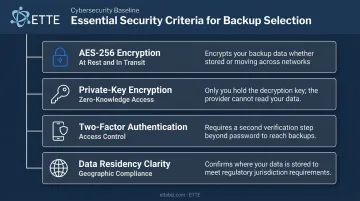
- AES-256 encryption at rest and in transit (baseline requirement)
- Private-key encryption — so even the provider can't access your data (Backblaze and Arq offer this)
- Two-factor authentication support
- Data residency clarity — where your data is stored geographically matters for certain compliance frameworks
For health-adjacent nonprofits, HIPAA's Security Rule requires retrievable copies of electronic protected health information (ePHI) and documented disaster recovery procedures. HIPAA documentation must be retained for at least six years.
DC-based organizations should also review the District's data breach notification law, which requires notifying affected consumers and the Attorney General without unreasonable delay for qualifying breaches.
Ease of Use and Recovery Reliability
For organizations without dedicated IT staff, backup software that requires technical expertise to restore defeats the purpose. Prioritize:
- Automated backup schedules that run without manual triggers
- Simple restore interfaces (not just backup interfaces)
- Tested recovery processes — not just configured ones
Running a backup without ever testing a restore means you don't actually know it works. Organizations managing IT across multiple staff members should consider working with a managed IT provider like ETTE, which treats backup verification as a scheduled, recurring responsibility rather than a one-time setup task.
Versioning and File Retention Depth
True backup preserves multiple versions of each file over time. This matters for three specific scenarios:
- Ransomware recovery: Corrupted files may have been silently "saved" days before the attack was detected, making recent backups useless without deep version history
- Accidental overwrites: A staff member saves over a critical document and the only clean copy exists in a prior version
- Regulatory audits: You may need to produce a document exactly as it existed at a specific point in time
Look for at least 30 days of version history at minimum; longer retention for compliance archives.
Conclusion
The right cloud backup service depends on your organization's data volume, compliance obligations, IT capacity, and budget. IDrive and CrashPlan tend to suit most small businesses and nonprofits well. Acronis is the stronger pick for organizations where ransomware resilience is the primary concern. Backblaze fits organizations with one large device to protect. Arq Premium works for cost-conscious teams comfortable with basic configuration.
Having a service in place is only part of the equation. It must be configured correctly, tested regularly, and monitored for errors — which is where many small organizations fall short. Backup failures are often silent; you won't know until you need to restore something. That's the gap a verified, monitored backup strategy is designed to close.
ETTE has served nonprofits, associations, and small businesses in Washington, DC for over 20 years, helping organizations build layered data protection strategies that include cloud backup implementation, restore verification, and ongoing monitoring.
If you're not certain your current backup setup would hold up under a real recovery scenario, connect with ETTE to review your backup configuration and recovery readiness.
Frequently Asked Questions
Frequently Asked Questions
What is the best cloud backup service?
IDrive is consistently rated best overall for multi-device value, Acronis is the preferred pick for security-focused organizations, and CrashPlan is purpose-built for small business environments. The right choice comes down to your data volume, device count, and what you're willing to spend.
How do I get cloud backup services?
Most services (IDrive, Backblaze, Acronis, CrashPlan, and Arq) can be purchased directly from the provider's website. Small organizations without IT staff may want a managed IT provider to handle setup, configuration, and ongoing monitoring on their behalf.
What is the difference between cloud backup and cloud storage like Google Drive or OneDrive?
Cloud storage syncs files, meaning deletions and changes propagate everywhere and recovery windows are limited (typically 30 days). Cloud backup retains multiple file versions over time and protects against ransomware, hardware failure, and accidental deletion. Use both, but don't confuse one for the other.
How much does cloud backup typically cost for a small business?
Pricing ranges from roughly $60–$100/year for small-team plans (Arq Premium, Backblaze) to $8–$10/user/month for business-focused services like CrashPlan. Always factor in renewal pricing, overage fees, and total device count when comparing, since first-year promotional rates can differ significantly from ongoing costs.
Is cloud backup safe for sensitive organizational data?
Reputable services use AES-256 encryption in transit and at rest. The most secure options, including Backblaze and Arq, offer private-key encryption, meaning the provider cannot access your data. Always verify two-factor authentication support and review the provider's privacy policy before committing.
How often should a small business or nonprofit back up its data?
Continuous or near-continuous backup (every 10–60 minutes) is ideal for active working files. Daily scheduled backups are an acceptable minimum for less frequently changed data. As a practical rule: back up as often as you can afford to lose — if losing a full day's work is unacceptable, daily isn't enough.