Introduction
Most device backups are not encrypted by default. That means saved passwords, health records, browsing history, and app credentials sit in a readable format on your computer or in cloud storage — accessible to anyone who gains physical or remote access to that backup file.
This is true for individual users and organizations alike. A nonprofit staff member backing up their work iPhone to a personal laptop creates the same exposure risk as a company with dozens of managed devices and no backup policy.
Here's what this guide covers:
- What encrypted backups are and how they work
- What sensitive data encryption protects that unencrypted backups leave exposed
- Why enabling encryption is a security and compliance priority
- How to enable and manage encrypted backups on iPhone and iPad
- What to do if you forget your encrypted backup password
What Is an Encrypted Backup?
An encrypted backup converts your device data from readable plaintext into scrambled ciphertext. Without the correct password or decryption key, the data is unreadable — including to the company storing it.
How the Encryption Process Works
When you create an encrypted backup, an encryption algorithm processes your data and locks it using a mathematical key. When you need to restore, you provide the password, the data is decrypted, and your files become readable again. Without the password, access is simply not possible.
This is what separates encrypted backups from their unencrypted counterparts:
- Unencrypted backup: Data is stored in a readable format. Anyone with access to the backup file can read its contents.
- Encrypted backup: Data is scrambled. Without the correct password, the contents are inaccessible.
A Note on Encryption Standards
AES (Advanced Encryption Standard) is widely used across Apple services, major cloud providers, and U.S. government systems. CISA describes AES as the binding federal standard for protecting sensitive unclassified information, and NSA's CNSA 2.0 specifies AES-256 for National Security Systems.
Apple's Platform Security documentation confirms that local backup encryption uses password-based key protection with strong key derivation. Apple does not publicly attribute a single AES key length to all backup types.
Local vs. Cloud Backups
Encryption applies differently depending on where your backup lives:
- Local backups (via Finder or iTunes) require you to manually enable encryption — it's off by default
- iCloud backups are encrypted in transit and at rest by default, but Apple holds the encryption keys under standard settings
That last point matters: who holds the keys determines who can actually access your data.
What Data Does an Encrypted Backup Protect That an Unencrypted One Doesn't?
Apple excludes certain sensitive data categories from standard unencrypted backups — not by accident, but because these categories are treated as too sensitive to store without encryption.
What Encrypted Backups Include That Unencrypted Ones Don't
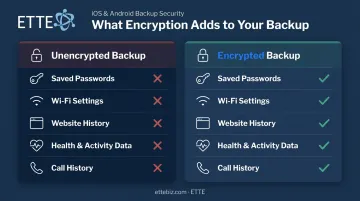
According to Apple's support documentation, enabling the "Encrypt local backup" option adds the following to your backup:
- Saved passwords
- Wi-Fi settings
- Website history
- Health and Activity data
- Call history
These five categories are excluded from unencrypted backups entirely. If you restore from an unencrypted backup, you manually re-enter every app password, email credential, and Wi-Fi network. An encrypted backup carries all of it over automatically.
What Backups Never Include — Encrypted or Not
Regardless of whether encryption is enabled, no backup stores:
- Face ID or Touch ID biometric data
- Your device passcode
These are intentionally excluded from all backups for security reasons.
Why This Matters for Organizations
The exclusions above are device-level by design — but the credential gap in unencrypted backups creates a separate, organizational-level risk. For nonprofits, associations, and small businesses, that exposure is direct. Staff devices often contain work email logins, CRM credentials, and shared platform access. If a backup file is copied or falls into the wrong hands, an unencrypted backup hands over those credentials in readable form. An encrypted backup does not.
Why You Should Encrypt Your Device Backups
An unencrypted backup file stored on a computer or in unsecured cloud storage is as vulnerable as the device itself. Anyone with physical or remote access to that storage can read its contents — and backup files tend to hold the most sensitive data on the device.
The Credential Risk
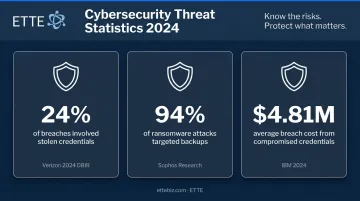
Backup files containing saved passwords, health data, and browsing history form a complete digital profile. The Verizon 2024 Data Breach Investigations Report found stolen credentials were the top action in 24% of the 9,982 breaches studied. IBM's 2024 Cost of a Data Breach report found compromised credentials were the initial attack vector in 16% of breach cases, with an average cost of $4.81M per breach.
Backed-up passwords are exactly the type of credential that makes these attacks possible.
The Ransomware Angle
Ransomware operators don't just encrypt your active files — they target your backups specifically to prevent recovery. Sophos research found that among organizations that suffered ransomware, adversaries attempted to compromise backups in 94% of cases, succeeding in 57% of those attempts. An encrypted backup that attackers cannot read reduces the damage even when the backup file itself is accessed.
Compliance Considerations
Many organizations handling sensitive data face regulatory expectations around protecting it at rest. A few relevant frameworks:
- HIPAA (45 CFR 164.312) classifies encryption as "addressable" — organizations must assess whether it's reasonable and appropriate, then implement it or document an equivalent alternative
- GDPR Article 32 lists encryption as an expressly named risk-based measure for protecting personal data
- California Civil Code 1798.150 affects whether a business faces private liability when unencrypted personal data is exposed
For DC-area nonprofits and associations handling donor, member, or beneficiary data, encrypted backups help satisfy the "data at rest" component of these frameworks — though whether a specific regulation applies depends on the type of data you hold.
ETTE's Virtual CISO service includes backup strategy review as part of security governance work, helping organizations translate these compliance obligations into documented, enforced controls.
How to Enable and Manage Encrypted Backups on Your Device
Local Device Backups (iPhone/iPad via Finder or iTunes)
Enabling local backup encryption takes about five minutes. Here's the process:
- Connect your iPhone or iPad to your Mac or PC via USB cable
- Open Finder (macOS Catalina and later) or iTunes (older macOS or Windows without the Apple Devices app)
- Select your device from the sidebar or device list
- Navigate to the General tab (Finder) or Summary tab (iTunes)
- Check "Encrypt local backup" and create a strong password when prompted
- Confirm the backup completes — this first encrypted backup may take longer than usual
- Verify encryption is active by going to Manage Backups in Finder or iTunes — a lock icon next to the device name confirms it's encrypted. Always check this after initial setup.
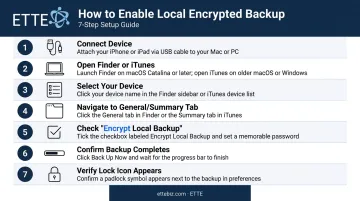
Once enabled, all future backups from that device are encrypted automatically. This also overwrites previous unencrypted backups.
iCloud Backups
Standard iCloud Backup encrypts your data in transit and at rest — but Apple holds the encryption keys. That means Apple can technically access your data under certain circumstances, such as a legal request. For most organizations, this is worth understanding before assuming iCloud is fully private.
Apple offers a stronger option: Advanced Data Protection (ADP), which switches iCloud Backup to end-to-end encryption. Under ADP, only your trusted devices hold the keys — Apple cannot access your data, period.
| Standard iCloud Backup | Advanced Data Protection | |
|---|---|---|
| Encryption | In transit and at rest | End-to-end |
| Who holds keys | Apple | Your trusted devices only |
| Apple can access data | Yes (e.g., legal requests) | No |
| Account recovery if locked out | Apple can assist | Recovery contacts only |
To enable ADP: Settings → [Your Name] → iCloud → Advanced Data Protection
The tradeoff is real. If you lose access to your account and have no recovery contacts set up, Apple cannot help you recover that data. ADP shifts key custody — and recovery responsibility — entirely to you.
What Happens If You Forget Your Encrypted Backup Password?
Forget your encrypted backup password and the data inside is gone — there is no "reset and recover" option. Unlike a forgotten email password, the encryption has no back door. Without the correct password, the backup is permanently inaccessible.
Apple's Recovery Path
Apple's support documentation describes one option: resetting your backup encryption settings on the device itself. On iOS 11 or later, this is done through Reset All Settings (Settings → General → Transfer or Reset iPhone → Reset → Reset All Settings).
This clears the old encrypted backup password and resets some device preferences (display brightness, Home Screen layout, wallpaper). It does not delete your data. After the reset, you can create a new encrypted backup with a new password.
The catch: all previous encrypted backups become permanently unusable. You can start fresh, but old backup data is gone.
Practical Password Management for Backups
The only real safeguard is treating your backup password with the same seriousness as a master login credential:
- Store it in a reputable password manager, not in memory or on a sticky note
- Document it in centrally accessible IT records, not in a single employee's personal account
- Test restoration periodically to confirm the password works before an emergency forces the issue
ETTE consistently finds missing or undocumented passwords among the most common problems when onboarding new clients. Critical passwords, including backup encryption passwords, need to live in a secure, centrally accessible location — not in someone's head.
Encrypted Backup for Organizations: What IT Teams Need to Know
When staff use work-issued or personal devices for work purposes, organizations typically leave backup policies to individual employees. The result is inconsistent protection across the organization — some devices encrypted, most not, and no one tracking which is which.
Device-Level vs. Enterprise Backup Encryption
These are two separate problems requiring separate solutions:
| Layer | What It Covers | Who Manages It |
|---|---|---|
| Device backup encryption | iPhone, iPad, laptop backup files | Individual users or IT policy |
| Cloud platform backup | Microsoft 365, Google Workspace, CRM data | Dedicated backup tools, IT team |
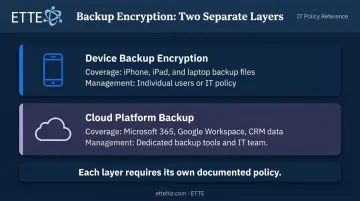
Encrypting an iPhone backup does not protect your Microsoft 365 email archive. Each layer requires its own documented policy — they don't cover for each other.
Where Internal IT Capacity Falls Short
For most nonprofits, associations, and small businesses in the 10–150 staff range, defining and enforcing a backup encryption standard across all devices and cloud platforms exceeds what an internal IT generalist can consistently manage.
ETTE's experience confirms this: organizations frequently arrive without defined backup encryption policies — and often cannot produce records showing when backups were tested or when configurations were last reviewed.
ETTE's managed IT services address this through documented environments, security-aware delivery, and backup strategy review as part of the Virtual CISO service. Backup health — including encryption status — is reviewed on a defined schedule, with findings documented and surfaced to leadership alongside other security posture indicators.
Frequently Asked Questions
What is an encrypted backup?
An encrypted backup is a copy of your device data scrambled using an encryption algorithm, making it unreadable without the correct password or decryption key — even if someone copies or steals the file.
Do I want my iPhone backups to be encrypted?
Yes. Encrypted backups protect saved passwords, Health data, Wi-Fi settings, website history, and call history — none of which appear in unencrypted backups. They also make switching or restoring devices significantly easier, since credentials transfer automatically.
What does "turn off encrypted backup" mean?
Turning off encrypted backup disables the encryption setting for future backups — new backups will be stored without a password. Existing encrypted backups are not automatically deleted.
What data is included in an encrypted backup that isn't in an unencrypted one?
The five categories Apple adds with encrypted backups are: saved passwords, Wi-Fi settings, website history, Health and Activity data, and call history.
What happens if I forget my encrypted backup password?
Forgetting the password means losing access to all previous encrypted backups with no recovery option. You can reset the backup encryption setting and create a new encrypted backup, but old backup data cannot be retrieved.
Is iCloud backup encrypted?
Standard iCloud backups are encrypted in transit and at rest, but Apple holds the encryption keys. Enabling Advanced Data Protection in iOS settings switches to end-to-end encryption, where only your trusted devices hold the keys and Apple cannot access your data.